

What Happens After I Leave MSU?
When you leave MSU, whether you were an employee or student, a series of processes will take place that change the way you can interact with the university. See below for a list of these processes, when they take effect, and what you can do to facilitate a smooth transition.
Quick Reference Guide
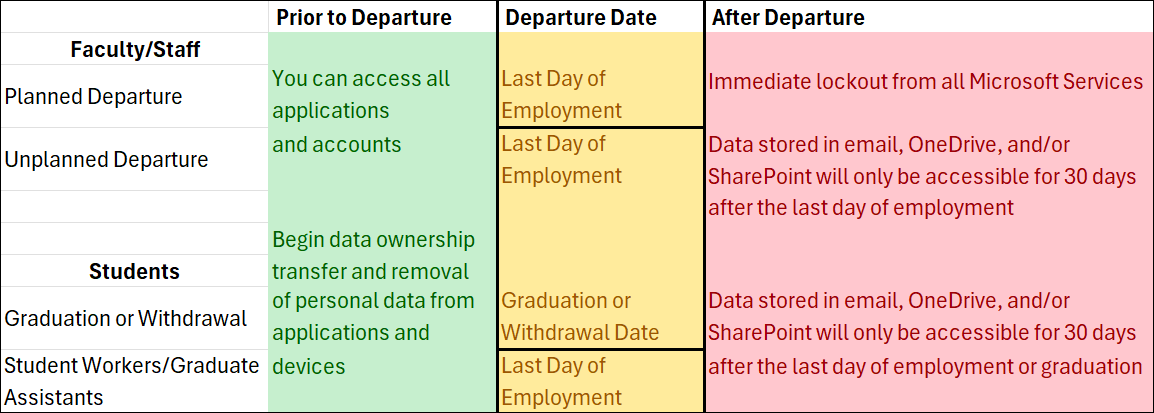
Note: Access to all Microsoft services is immediately disabled following the last day of employment. Data stored in email, OneDrive, and/or SharePoint will only be accessible for 30 days after the last day of employment. Movement of data and reassignment of accounts takes time. It is recommended to start this process 30 days prior to separation, do not wait until the day of separation.
Other MSU IT Services and Cloud Storage In addition to Microsoft services, access to other MSU‑provided IT services that include cloud storage (such as Adobe Creative Cloud) will end after you separate from the university. Files stored in these services may become inaccessible, so be sure to download or move any data you need before separation or within any applicable retention period.
Faculty and Staff
Note: See our IT Privileges for MSU Faculty Retirees page for information on how you can apply to have email access extended for 30 days.
Any email account left inactive for 2 years will be automatically closed. The following information applies to both faculty and staff.
These steps should be taken, even if the separating employee is applying for Emeritus status, as that process can take longer than the 30-day data retention period.
- Remove any personal files, emails, or passwords from computer(s), OneDrive and/or SharePoint, Password Managers, and Browsers.
- Transfer ownership of University data (research, documents, shared drives, shared
Teams/SharePoint sites, etc.) to departmental SharePoint site(s), Blackmore, or Knox, depending on data classification.
- Refer to the Data Storage Grid for more instruction.
- Transfer critical emails to departmental/shared accounts, and transfer ownership of any shared mailboxes or delegated accounts.
- If needed, you can request assistance with both of these tasks through the UIT Service Desk.
- Set an out-of-office email reply with employees last day and alternate contacts.
- Set-up email forwarding to alternate contacts (allowable for limited duration).
- Remove university‑licensed software from personal devices (Office, Adobe, SPSS, etc.).
- Transition any personal online services or subscriptions that use a university email address to a personal email address.
Request for access to email or file storage should begin immediately, as data stored in email, OneDrive, and/or SharePoint will only be accessible for 30 days after their last day of employment.
- Immediate account lock: Expect email, OneDrive, and licensed software access to end immediately
- Add your Supervisor as delegate to your Microsoft account for access as needed (allowable for limited duration).
- Your department must secure shared resources/accounts (research data, grant files, course materials, etc.) by requesting ownership transfer through the UIT Service Desk.
- Recover critical data quickly and move it to departmental SharePoint site(s), Blackmore, or Knox, depending on data classification.
- Refer to the Data Storage Grid for more instruction. UIT may allow short‑term sponsorship or temporary access for business continuity; this must be requested immediately.
- Communicate with collaborators to provide alternate contacts and clarify where project files will be stored.
- Set an out-of-office email reply with your last day and alternate contacts.
- Set-up email forwarding to alternate contacts (allowable for limited duration).
- Inventory and return all university devices promptly to avoid data leakage.
Students
If you are both a student and an employee, please pay attention to both rows as your two accounts are separate and will behave according to their individual status.
When you separate from MSU your access is immediately disabled. Your OneDrive data will be accessible by anyone that it was shared with for 30 days only.
After 30 days your account and data is deleted and cannot be recovered.
Note: If your OneDrive account is deleted (ex: graduation), files that you originally owned will still be removed, even if ownership is shared. To fully move a file or folder to a different account, download the file or folder and upload it to the new account/location.
It is highly recommended that files and folders intended to be shared among a group
of people be moved into a SharePoint Document Library and not another user's OneDrive.
NetID Notice: your NetID and information remains in university records indefinately. If you are employed by the university in the future or become a student again, your account access will be reactivated, though any files originally saved through previous OneDrive access will not be recovered.
See our OneDrive FAQ page for more information.
Note: Access to all Microsoft services is immediately disabled following the last day of employment.
- Remove any personal files, emails, or passwords from computer(s), OneDrive and/or SharePoint, Password Managers, and Browsers.
- Transfer ownership of University data (research, documents, shared drives, personal
Teams/SharePoint sites, etc.) to departmental SharePoint site(s), Blackmore, or Knox, depending on data classification.
- Refer to the Data Storage Grid for more instruction.
- Transfer critical emails to departmental/shared accounts, and transfer ownership of any shared mailboxes or delegated accounts.
- If needed, you can request assistance with both of these tasks through the UIT Service Desk.
- Set an out-of-office email reply with employees last day and alternate contacts.
- Set-up email forwarding to alternate contacts (allowable for limited duration).
- Remove university‑licensed software from personal devices (Office, Adobe, SPSS, etc.).
- Transition any personal online services or subscriptions that use a university email address to a personal email address.